


Creati:AI Image Video Maker
3.8988.00 Reviews
App Specs
- Version
- 2.76.1
- Updated On
- License
- Free
- Downloads
- 10,000,000+
- Developer
- Mojio AI Photo Generator
- Categories
- Art & Design
- Platform
- Android
Screenshots
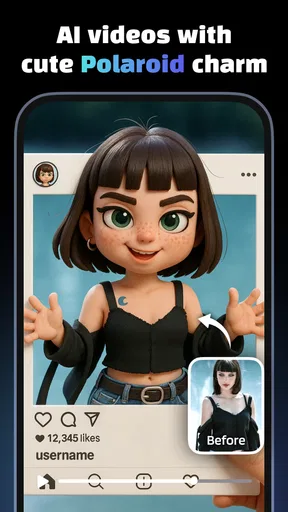
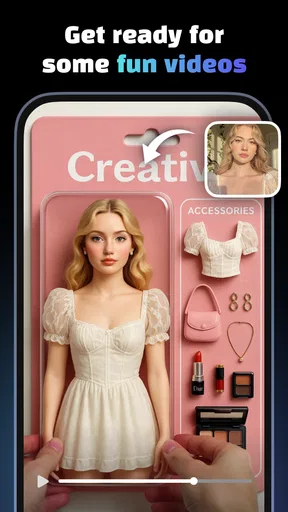

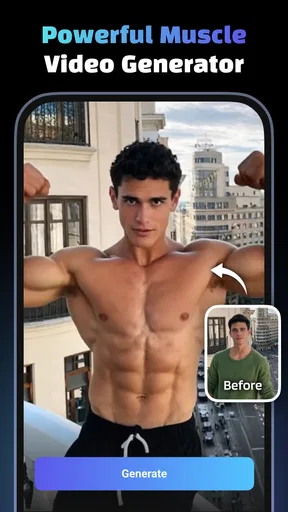
 Analysis by AppCompare
I’m drawn to creative apps that help me get from an idea to something shareable without turning a spare moment into a full editing session. Creati: AI Image Video Maker is an art and design app from Mojio AI Photo Generator, and its clearest appeal is the way it puts ready-made creative starting points within reach. I’d look at it less as a replacement for a specialist editing suite and more as a way to make polished-looking visual content when speed matters.
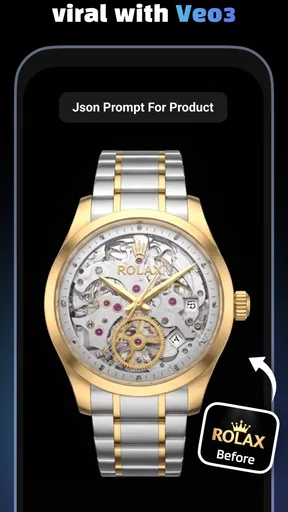
Its strongest use case is turning a product or subject into a short video with a template doing much of the structural work. That can be useful for a small seller preparing a social post, a creator who needs a quick visual, or anyone who would rather choose a direction than build every frame from a blank canvas. The trade-off is that a template gives you momentum, not unlimited control: the result still needs your eye and a little editing to feel personal.
Why templates change the starting point
A blank editing screen asks you to make several decisions before you have anything to show: pacing, layout, text placement, and the overall look. Creati’s template-led approach reduces that early friction. With more than a thousand ready-to-use templates, there is room to browse for a style that suits the subject before deciding how much to customize. I find that especially useful when the goal is a first draft rather than a highly art-directed campaign.
The practical benefit is not simply that a template saves taps. It gives a project a visual framework, which can help when you have a product photo or a rough concept but no clear sequence in mind. I’d still treat the template as a starting recipe rather than a finished answer. If the same layout does not suit the item, or the message feels crowded, changing direction early is better than trying to rescue a mismatched design at the end.
Getting Started with Creati: AI Image Video Maker
Jumping into Creati: AI Image Video Maker is pretty straightforward. The app has a sleek interface that’s both user-friendly and intuitive. When you first dive in, you’re greeted with a variety of options. Want to create an image? A video? Maybe even a gif? It’s all right there at your fingertips.
The app is designed to cater to both newbies and seasoned artists alike. You’ve got a bunch of templates to choose from, which is perfect if you’re looking for a quick start. But if you’re feeling adventurous, you can start from scratch and let your imagination run wild.
Making a video that still feels like yours
I would begin by being clear about the one thing the video should communicate. Is it a product’s appearance, a new arrival, or a simple reminder? That decision makes template browsing more focused and keeps the finished clip from becoming a pile of unrelated effects. For a product post, I’d choose a template that leaves room for the item to remain the focus, then add only the words a viewer needs to understand what they are seeing.
Worth Reading Before You Choose

EA SPORTS FC Mobile 26 Is a Bigger Football Game, but It Takes Time

Flipboard Shows What News Apps Must Do Beyond the Feed

Switching to Android Auto Means Rethinking Your Driving Routine

Google Calendar Makes a Crowded Week Easier to Manage

Ludo King Makes the Most of the Minutes Between Plans

Baby Panda World Brings Quick Play to Modern Phones, but Its Game Library Feels Busy
A useful workflow is to prepare the images and wording before opening the editor. That keeps the creative choices in the app manageable: select a suitable template, place the most important visual where it reads clearly, and check the result at the size people are likely to see it on a phone. If the text competes with the image, shorten it rather than shrinking it until it becomes hard to read. This small check can make a quick template-based video feel much more intentional.
For someone making content regularly, I’d also keep a simple note of which styles suit different subjects. A clean layout may work for a product with lots of detail, while a more energetic look may make sense for a playful item. The point is not to lock every post into one appearance; it is to avoid starting from zero each time and to make a consistent choice on purpose.
Diving into Features
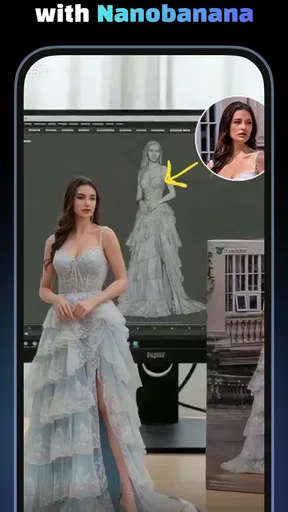
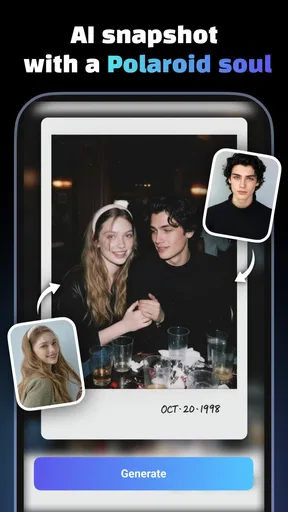
Now, let’s talk features. This is where Creati really shines. The app is loaded with AI-powered tools that make the creation process a breeze. You’ve got smart filters that adjust your images in real-time, ensuring they look top-notch. The AI does the heavy lifting, so you can focus on the fun stuff—like choosing colors, adding text, or throwing in some cool effects.
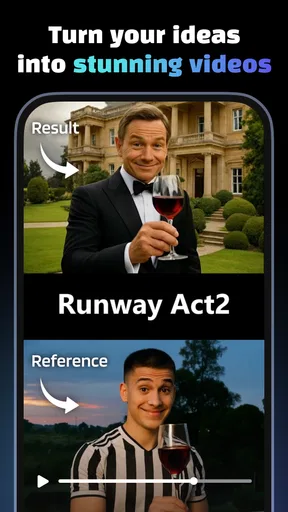
For video creation, Creati offers a timeline feature that’s super easy to navigate. You can cut, splice, and transition with just a few taps. The app even includes a music library to add some background tunes, which is pretty neat. Plus, if you’re someone who gets stuck trying to find the perfect song, the app’s AI can suggest tracks based on your video’s mood. That’s a nice touch!
Choosing the right amount of polish
Templates and automated suggestions can make a first pass faster, but they can also tempt me to keep adding treatments simply because they are available. I prefer to judge each edit by whether it helps the viewer notice the subject. A filter that changes the look of an image may be useful when the original feels flat, but for a product, too much styling can make color or texture less trustworthy. I’d compare the edited image with the source before settling on it.
The same restraint applies to text, transitions, and music. A short video does not need every moment to announce itself. I’d use a transition only when it makes the shift between shots easier to follow, and I’d keep any wording brief enough to read without pausing. If the soundtrack draws more attention than the product, the mood suggestion has not necessarily picked the right track for the job. Suggestions are a convenience; the final choice should match the purpose.
That is also where Creati’s template-first workflow differs from a conventional, manual editor. A traditional editing app can be better when I need precise timing, a carefully controlled sequence, or a repeatable brand layout. A design app focused on static graphics may be a better fit for a poster or a single image that needs detailed arrangement. Creati makes more sense when I want a quick route into visual content and am comfortable letting a template guide the structure.
A realistic everyday project
Imagine I have a new handmade item to show and only a few minutes between other tasks. I can choose a template that suits its look, use a clear photo, and build a short clip around one message instead of trying to explain every detail. Before sharing, I’d check that the item is easy to see, the wording is legible, and the music does not distract. If the result still feels generic, I would change the template rather than add more decoration. That is a practical way to use the app’s speed without letting the template make every creative decision.
For a casual creator, that same workflow can help with a quick announcement, a seasonal post, or a simple visual for a personal project. It is less compelling when the work depends on precise brand rules or extensive frame-by-frame control. I would not choose a fast template just to claim a project is finished; the time saved at the beginning is worthwhile only if the final result still communicates clearly.
User Experience
Using Creati feels like having a personal assistant that gets what you’re trying to achieve. The AI suggestions are on point, and the app rarely lags. It’s optimized for both Android and iOS, so you’ll have a smooth experience no matter what device you’re using. I personally loved how quickly I could switch between different projects without any hiccups.
One thing to note is the app’s community feature. You can share your creations and get feedback from other users. It’s a great way to connect with fellow creatives and maybe even get some inspiration for your next project.
Cost, fit, and a few sensible checks
Creati is free to download, which makes it easy to try the template-led workflow before deciding whether it fits your habits. It has in-app purchases ranging from $4.99 to $99.99 per item, so I would check the price shown for any purchase before committing. If I only need a one-off clip, I’d first see whether the free experience covers that particular task rather than assuming every option is included at no cost.
The app is rated for Everyone, and its current version is 2.76.1, with Android 7.0 as the minimum operating system requirement. It has reached over 10 million installs and has a 3.8 average from around 76,000 ratings, alongside 988 written reviews. Those figures suggest plenty of people have tried it, but they do not guarantee that every workflow will suit me. I’d use a small, low-stakes project to get comfortable with the editor before relying on it for something time-sensitive.
One question I’d ask before making this part of a regular routine is whether the available templates match the kind of content I actually create. A large selection is helpful, but sheer choice can become its own obstacle if browsing takes longer than making the video. I’d narrow the search by deciding on the subject and tone first, then stop once I find a layout that communicates the idea clearly. For a very specific visual identity, I would compare a few outputs with my existing posts and use another tool if the template’s style keeps overpowering the content.
Another sensible check is how a finished piece looks outside the editing screen. I’d review the saved result on the phone where it will be viewed, paying attention to small text, crop, and whether the opening makes the subject obvious. This is a general quality check rather than a complicated editing trick, but it catches problems that are easy to miss while concentrating on the timeline. If the clip is intended for a business, I’d also make sure the images and wording are accurate before sharing; quick production does not remove the need for a careful final review.
Who gets the most out of it
I’d recommend trying Creati if you want to make visual posts quickly, enjoy browsing templates, or find a blank canvas intimidating. It is especially approachable for occasional creators who need a presentable starting point more than a deep set of manual controls. Its appeal is the combination of template-led creation and AI assistance, which can help turn a rough idea into something worth reviewing without requiring an elaborate setup.
I would point experienced editors toward a more hands-on alternative when exact timing, intricate layers, or strict brand consistency matter most. I’d also skip Creati if I strongly dislike template-driven design or need every element to behave in a precisely controlled way. In those cases, a conventional video editor or a dedicated graphic design tool gives more room to shape the result, even if the process takes longer.
Final Thoughts
At the end of the day, Creati: AI Image Video Maker is a powerhouse of creativity packed into an app. It’s versatile, user-friendly, and most importantly, it’s fun to use. Whether you’re looking to create something professional or just dabble in some casual creativity, this app has got you covered.
If you’re someone who loves to explore new creative avenues, I’d definitely recommend giving Creati a shot. It’s like having a mini art studio wherever you go, and who doesn’t want that? So go ahead, unleash your creativity, and let the magic of AI take your projects to the next level!
My practical verdict
My recommendation comes with a clear boundary: I see this as a convenient maker for quick, template-guided visual work, not an all-purpose production desk. The advertised focus on product videos gives it a distinct purpose, and the large template collection can make it easier to begin when I have an image but no finished concept. Whether that translates into a useful result depends on choosing a layout that serves the subject instead of letting the layout dictate the message.
For a first try, I’d pick a simple project with one clear goal, compare two possible templates, and keep the final edit restrained. That gives a fair sense of whether Creati suits my way of working without spending time polishing the wrong direction. If I come away with a clip that is clear and easy to share, the app has done its job; if I need more exact control, I’d move the project to a more specialized editor.
Pros
- User-friendly interface for beginners.
- Wide variety of templates available.
- High-quality output resolution.
- Fast rendering and export times.
- Integrates well with social media.
Cons
- Limited free version features.
- Occasional app crashes reported.
- Requires high storage space.
- Some features need in-app purchases.
- Watermark on free version exports.
FAQs for Creati:AI Image Video Maker
What features does Creati: AI Image Video Maker offer?
Creati: AI Image Video Maker provides a variety of features including AI-powered image and video editing, customizable templates, and a library of effects and filters. Users can create professional-quality content effortlessly. The app also supports various export options, making it easy to share your creations on social media platforms.
Is Creati: AI Image Video Maker user-friendly for beginners?
Yes, Creati is designed with an intuitive interface that caters to both beginners and advanced users. Its step-by-step guidance and easy-to-navigate menus ensure that users can quickly learn and utilize the app’s features without a steep learning curve. Tutorials and in-app tips are also available to assist new users.
What are the system requirements for Creati: AI Image Video Maker?
Creati requires Android 8.0 or iOS 12.0 and above for optimal performance. The app is optimized for both smartphones and tablets, but for the best experience, a device with at least 3GB of RAM is recommended. Ensure your device has sufficient storage space as the app might require additional space for managing large media files.
Are there any in-app purchases or subscriptions in Creati?
Creati offers a freemium model, where basic features are available for free. However, advanced tools, premium templates, and an ad-free experience are accessible through in-app purchases or a subscription plan. The subscription provides regular updates and exclusive content, enhancing the overall user experience.
How secure is my data when using Creati: AI Image Video Maker?
Creati prioritizes user privacy and data security. The app does not store personal data on its servers, and all media files are processed locally on the user’s device. Additionally, Creati complies with international data protection regulations to ensure your personal information remains safe and confidential.


